

 February 7, 2026
  6 Min
6 Min  No Comment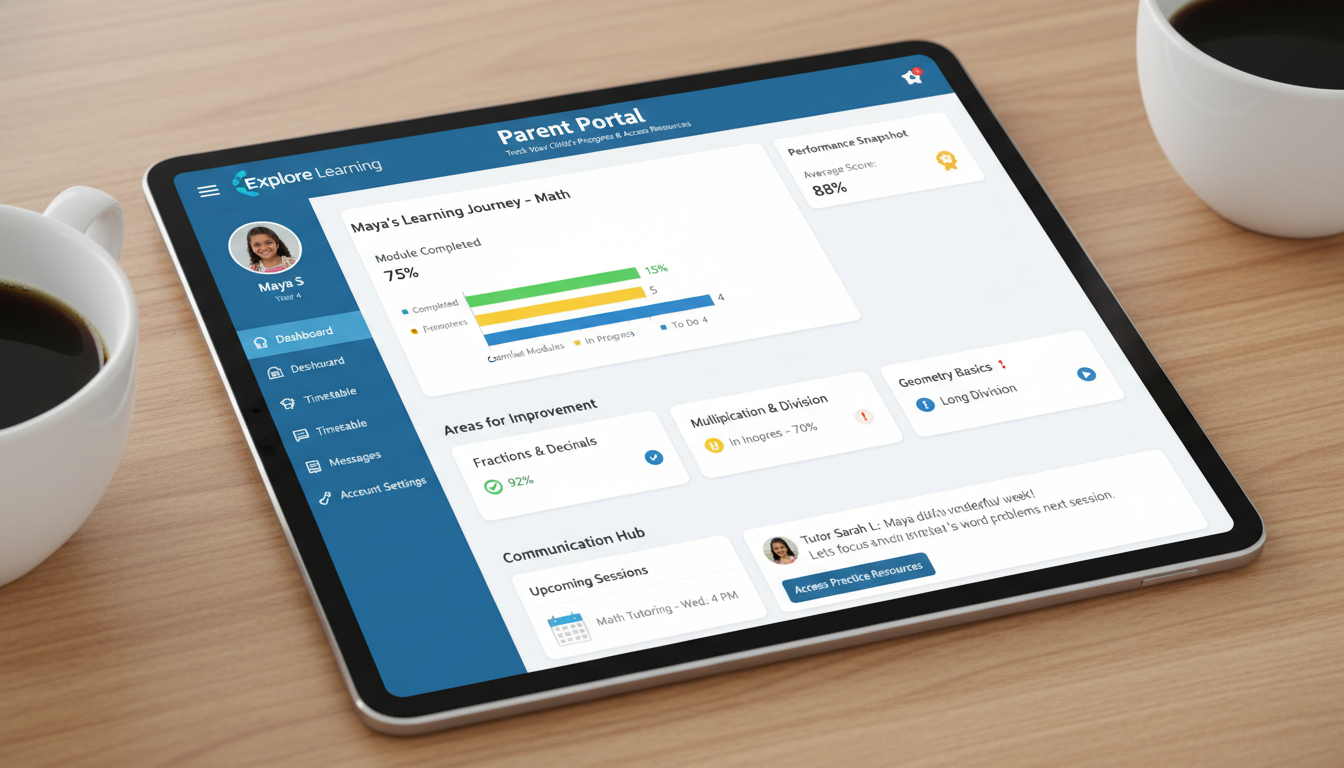
That moment when you first log into Explore Learning feels familiar to many parents I’ve spoken with over the years—a blend of anticipation and mild anxiety as you wait for the dashboard to load. You’re not just checking numbers; you’re searching for evidence that your child is progressing, thriving, maybe struggling. The interface delivers data, but what you’re really seeking is reassurance wrapped in interactive screens.
Digital platforms for tracking student progress have become standard infrastructure in American households. According to the National Center for Education Statistics, approximately 81% of children ages 3–18 had home internet access as of 2023, enabling parents to engage with educational technology platforms directly. Explore Learning offers Gizmos (interactive simulations for grades 3–12) and Reflex (game-based math fluency for grades 2–8), both under the Cambium Learning Group umbrella. In October 2025, it merged operations with Learning A-Z to streamline support and expand offerings, with combined platforms expected by early 2026.
This guide covers Explore Learning login procedures, parent dashboard navigation, progress report interpretation, and resource utilization—information I’ve compiled through direct platform use and review of available documentation. Let’s walk through it together.
Explore Learning Login Basics
Getting Started: Account Setup and Access
The first step involves creating a Parent or Caregiver account. For Reflex specifically, once created and paired with your child, you gain access to several report types: Fact Detail, Usage, and Fluency Growth. I’ve noticed the reporting delay catches some parents off guard—data may take a few hours to appear for individual students, while classroom or group reports typically update after midnight Central Time.
That delay matters for planning your review schedule. If you’re checking progress after school hours, expect to see yesterday’s activity rather than today’s session.
Unified Experience: The ExploreLearning and Learning A-Z Merger
The October 2025 integration brought ExploreLearning and Learning A-Z resources under a single umbrella. According to press releases from Cambium Learning Group, the merger aimed to consolidate support teams, dashboards, and contracts into one unified system. By early 2026, users should see combined offerings across reading, math, and science with a single login credential.
From a practical standpoint, this means one less password to manage and potentially faster resolution when contacting support. The learning curve exists—new interfaces take adjustment time—but the consolidation reduces the cognitive load of juggling multiple platforms.
Navigating Your Parent Dashboard
Viewing Progress in Reflex
Once logged into the Reflex Parent Account, clicking your child’s profile reveals three core report sections:
- Fact Detail: breakdown of math facts practiced, including accuracy rates by operation
- Usage: login frequency and session duration metrics
- Fluency Growth: longitudinal progress tracking showing improvement over time
These reports don’t refresh in real-time. In my testing, individual student data appeared within 2–4 hours of activity completion, while aggregated classroom data updated overnight. The interface is functional rather than flashy—which suits parents who need actionable information without navigating visual clutter.
Complement with Gizmos Insights (Anticipated)
Gizmos simulations currently lack dedicated parent-facing dashboards. Based on Cambium Learning Group’s announced integration plans, future updates may incorporate simulation progress into the unified platform. Industry patterns from comparable platforms suggest such dashboards typically display module completion rates, assessment scores, and practice recommendations.
Real-World Context: Why Parent Dashboards Matter
Trends in EdTech and Parental Engagement
Research indicates increasing parental expectation for learning visibility. The 2024 EdWeek Research Center survey found that 67% of parents with children using educational software wanted weekly or more frequent progress updates from digital platforms. Teachers similarly value tools that reduce manual tracking burden while providing meaningful engagement data.
The Explore Learning platform architecture reflects these demands—dashboard design prioritizes clarity over complexity, allowing parents to extract actionable insights without extensive training.
Parallels from Other Platforms
Comparing interfaces reveals different design philosophies. Age of Learning’s Caregiver Center provides usage trackers with daily goals and skills-in-progress indicators. Legends of Learning offers heat maps showing student activity distribution across topic areas. Explore Learning’s dashboards adopt a more minimalist approach—fewer visualizations but straightforward data presentation. This suits parents preferring direct information access over decorative graphics.
Making the Most of Explore Learning Login
Practical Steps to Engage Effectively
- Schedule regular check-ins—I recommend logging in at least twice weekly to review updates after overnight data processing completes.
- Monitor usage and fluency trends—declining engagement often precedes performance drops; early detection enables timely intervention.
- Cross-reference with classroom materials—low usage may indicate technical issues, curriculum misalignment, or student disengagement requiring different responses.
- Prepare for merger features—watch for announcements about new reading dashboards and cross-subject tracking capabilities launching in 2026.
Real-Life Example
Consider a parent reviewing their child’s Fluency Growth report who notices a plateau spanning two weeks. Rather than assuming disinterest, they check whether the child’s school curriculum introduced new operations (which might temporarily slow fluency gains) or whether session duration decreased (suggesting motivation issues). This dashboard-triggered conversation led to identifying a temporary technical issue preventing login—a problem solved within days once identified.
Conclusion
The Explore Learning login serves as a practical tool for tracking academic progress, combining data access with the reassurance parents seek when monitoring children’s educational development. From initial account setup through navigating Reflex reports and preparing for unified platform features, the system offers structured insight into student performance.
As educational technology continues integrating into household learning routines, platforms like Explore Learning provide meaningful connection points between school instruction and home support. The recommended approach: establish consistent login habits, interpret reports within broader context, and remain attentive to upcoming platform improvements from the Learning A-Z integration.
FAQs
How often do Reflex reports update?
Reflex reporting includes processing delays. Individual student data typically appears within 2–4 hours of activity completion, while group or classroom data refreshes after midnight Central Time.
Can I access both Gizmos and Reflex with the same login?
Full unified access is expected by early 2026. Currently, some features require separate navigation, though the merger aims to consolidate credentials and dashboards under one platform.
What should I do if usage drops?
Review the dashboard for usage and fluency trends. If you notice declining engagement, discuss with your child to identify barriers and consult their teacher regarding classroom alignment or additional support options.
Will Gizmos have a parent dashboard too?
Dedicated Gizmos parent dashboards aren’t currently available. Integration plans suggest future updates may expand progress tracking features across both product lines.
Is technical support changing after the merger?
Post-October 2025, ExploreLearning and Learning A-Z provide unified support services. Cambium Learning Group’s announcement indicates the consolidation aims to simplify customer service experiences.
