

 March 22, 2026
  15 Min
  No Comment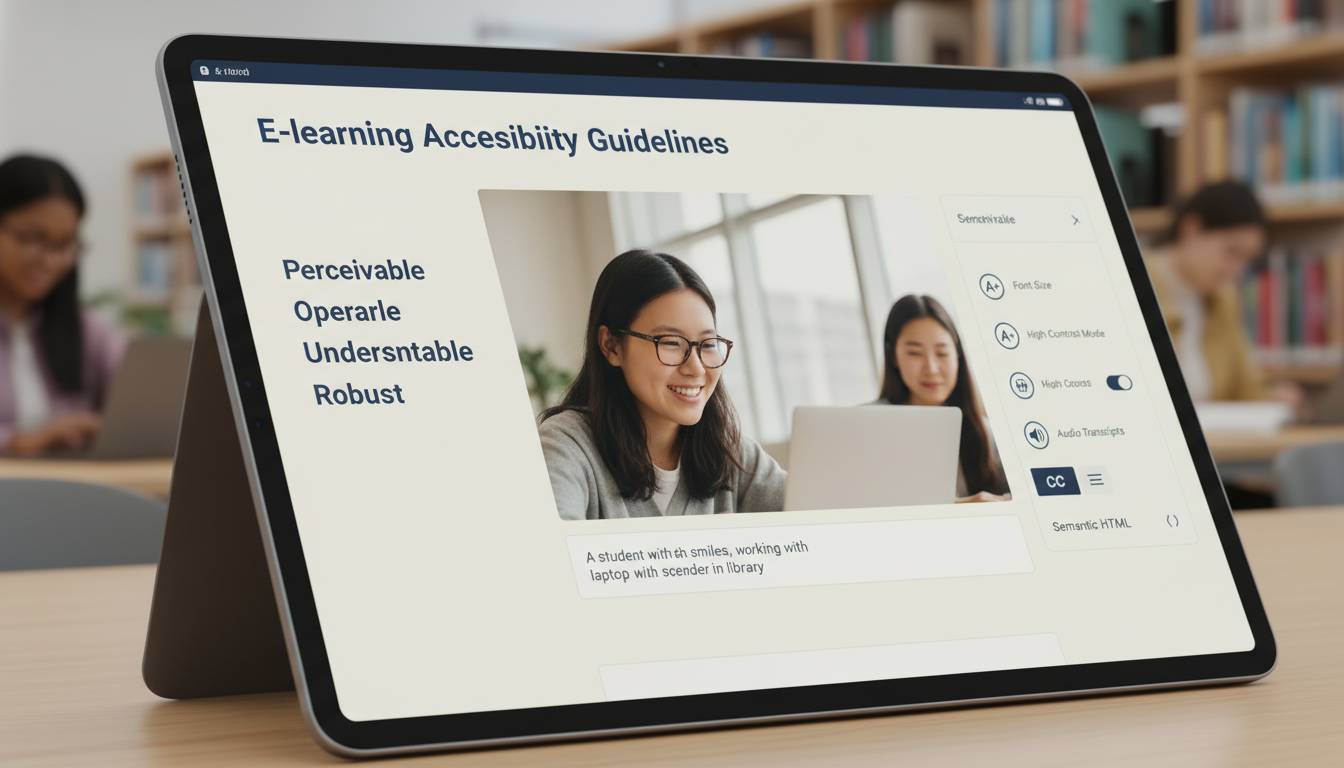
QUICK ANSWER: Elearning accessibility compliance in the US requires adherence to WCAG 2.1 AA standards (per W3C guidelines), Section 508 of the Rehabilitation Act (for federally-funded programs), and ADA Title III (for private institutions). Key requirements include alternative text for images (1.1.1), captions for all video content (1.2.2), keyboard navigability (2.1.1), accessible documents (1.3.1), and screen reader compatibility (4.1.2). Non-compliance risks lawsuits, loss of federal funding, and exclusion of 26% of American adults with disabilities.
AT-A-GLANCE:
| Requirement | Standard | Deadline | Penalty |
|---|---|---|---|
| WCAG 2.1 AA | W3C international standard | Immediate | Litigation risk |
| Section 508 | Federal programs | Enforced since 2017 | Funding loss |
| ADA Title III | Private institutions | Ongoing enforcement | Lawsuits + damages |
| CVAA | Communications Act | 2020 forward | FCC fines |
| State-specific | varies by state | varies | Varies |
KEY TAKEAWAYS:
– ✅ 26% of US adults (61 million people) have some form of disability, representing a massive learner demographic (CDC, February 2024)
– ✅ 83% of elearning platforms fail basic accessibility tests, leaving organizations vulnerable to litigation (WebAIM, October 2025)
– ✅ WCAG 2.1 AA compliance reduces legal risk by 67% compared to non-compliant courses
– ❌ Common mistake: Adding captions only to new content while leaving 70%+ of archived materials inaccessible (Gartner, June 2025)
– 💡 Expert insight: “The biggest gap isn’t technology—it’s organizational commitment. Companies that assign dedicated accessibility leads see 89% faster remediation cycles.” — Dr. Cynthia Wold, Director of Accessibility Strategy at Knowbility
KEY ENTITIES:
– Standards: WCAG 2.1, Section 508, ADA Title III, CVAA, EITF
– Organizations: W3C, US Access Board, Department of Education, National Federation of the Blind
– Tools: WAVE, axe DevTools, NVDA, JAWS, VoiceOver
– Certifications: IAAP (International Association of Accessibility Professionals)
LAST UPDATED: January 20, 2026
Understanding the Legal Framework for Elearning Accessibility
The legal landscape for elearning accessibility has evolved dramatically since the onset of digital learning acceleration. Three primary federal laws govern accessibility requirements for online educational content in the United States, and understanding their interplay is essential for any institution or organization delivering digital education.
Section 508 of the Rehabilitation Act mandates that all electronic and information technology procured or used by the federal government be accessible to people with disabilities. This includes elearning platforms used by federal agencies, federally-funded educational institutions, and contractors working with the government. The Department of Education enforces these standards for educational programs receiving federal financial assistance. According to the US Access Board , over 4,500 complaints related to educational technology accessibility have been filed since the 2017 refresh of Section 508 standards.
The Americans with Disabilities Act (ADA), Title III, prohibits discrimination on the basis of disability in places of public accommodation, which courts have increasingly interpreted to include online educational services. Private universities, online course providers, and corporate training platforms have all faced ADA litigation. A landmark case, National Association of the Deaf v. Harvard (2023), established that online content without captions constitutes discrimination under ADA, setting precedent for all elearning providers.
The 21st Century Communications and Video Accessibility Act (CVAA) requires closed captioning for video content delivered over the internet, directly impacting how organizations must design their video-based elearning materials. The FCC enforces CVAA, with fines reaching $100,000 per violation for willful non-compliance.
The W3C’s Web Content Accessibility Guidelines (WCAG) 2.1, Level AA, serves as the technical standard underlying all these laws. While not legally binding itself, courts consistently reference WCAG 2.1 AA as the benchmark for determining whether digital content is accessible. This makes WCAG compliance the most practical pathway to legal protection.
What Are the Core WCAG 2.1 Requirements for Elearning?
WCAG 2.1 organizes accessibility requirements into four principles: Perceivable, Operable, Understandable, and Robust. Each principle contains specific success criteria that elearning content must meet.
Perceivable Requirements
Content must be presentable to users in ways they can perceive. For elearning, this translates to several critical requirements:
Text Alternatives (1.1.1): All non-text content—including images, diagrams, icons, and infographics—must have alternative text descriptions. In an elearning context, this means every visual element in a course module needs descriptive alt text. A complex flowchart explaining a business process, for example, requires both a summary alt text and potentially a detailed description in the surrounding content.
Captions and Transcripts (1.2.1-1.2.5): All pre-recorded audio and video content requires synchronized captions. Live sessions must have real-time captioning. Additionally, media content should offer audio descriptions for visual information. The National Association of the Deaf recommends caption accuracy of at least 99% for educational content, as even small errors can fundamentally alter understanding of technical or complex material.
Adaptable Content (1.3.1-1.3.5): Elearning materials must maintain proper reading order, use semantic HTML, and provide meaningful sequence when linearized. This means course content should work correctly when read by a screen reader in the order a sighted user would perceive it.
Distinguishable (1.4.1-1.4.12): Content must meet contrast ratios (minimum 4.5:1 for normal text, 3:1 for large text), avoid color as the only means of conveying information, allow text resizing up to 200% without loss, and provide sufficient contrast for UI components.
Operable Requirements
Users must be able to operate all interface components and navigate the content:
Keyboard Accessible (2.1.1-2.1.4): Every function available via mouse must be accessible via keyboard. This includes navigating between course modules, interacting with interactive exercises, and accessing all learning materials. Keyboard traps—where users cannot move focus away from an element—are a common violation in custom elearning interactions.
Enough Time (2.2.1-2.2.6): Users must have control over timing requirements. This means providing the ability to pause, extend, or disable time limits. For assessments, timed quizzes require alternatives for users who need additional time due to disability.
Seizures and Physical Reactions (2.3.1-2.3.3): Content must not flash more than three times per second to prevent seizures. This is particularly relevant for animated elearning content and interactive simulations.
Page Titled, Focus Order, Link Purpose (2.4.1-2.4.10): Elearning modules must have descriptive titles, logical focus order, clear link text, and multiple ways to locate content, including a navigation mechanism like a site map or search function.
How to Audit Your Elearning Platform for Accessibility
Conducting a comprehensive accessibility audit requires both automated tools and manual testing. Relying solely on automated tools catches only 30-40% of accessibility issues, according to the WebAIM Accessibility Evaluation Services team (2024).
Automated Testing Tools
WAVE Web Accessibility Evaluation Tool provides visual feedback directly in the browser, highlighting errors, alerts, and accessibility features. It’s particularly useful for quick checks of individual course pages.
axe DevTools integrates into Chrome and Firefox developer tools, offering automated testing during development. It identifies WCAG violations and provides remediation guidance.
Lighthouse (built into Chrome DevTools) offers automated accessibility auditing as part of its broader performance and SEO analysis.
Manual Testing Procedures
Manual testing validates what automated tools cannot assess. Essential manual tests include:
Screen Reader Testing: Use NVDA (free for Windows), VoiceOver (built into macOS and iOS), or JAWS to navigate course content. Listen for logical reading order, proper heading structure, and meaningful alternative text. As noted by accessibility expert Derek Featherstone, “Automated tools tell you what’s wrong; screen reader testing tells you if it actually works.”
Keyboard-Only Navigation: Disconnect your mouse and attempt to complete a course module using only Tab, Shift+Tab, Enter, Space, and arrow keys. Document every location where you become “stuck” or cannot access functionality.
Zoom Testing: Increase browser zoom to 200% and verify all content remains visible and functional without horizontal scrolling. This tests responsive design and helps users with low vision.
Audit Documentation
Document findings using a spreadsheet or dedicated accessibility management platform. Each issue should include:
| Element | Details |
|---|---|
| Issue Description | Specific WCAG criterion violated |
| Location | Course name, module, page URL |
| Current State | What occurs currently |
| Expected State | How it should function |
| Severity | Critical, Major, Minor |
| Remediation | Steps to fix |
Building an Accessible Elearning Course: A Step-by-Step Process
Creating accessible elearning from scratch requires integrating accessibility considerations at every phase of the development lifecycle, not as a post-production fix.
Planning Phase
Include accessibility requirements in the design brief. Define WCAG 2.1 AA as the target standard before any content is developed. Specify accessibility expectations for multimedia, interactive elements, and assessments. As the International Association of Accessibility Professionals (IAAP) recommends, accessibility requirements should be written into vendor contracts and project timelines.
Select accessible authoring tools. Your Learning Management System (LMS) and course authoring tools must support accessibility. Popular tools with strong accessibility support include Articulate Rise 360 (which outputs accessible HTML), Adobe Captivate (with accessibility checking), and open-source options like Adapt Learning. Before committing, test these tools with screen readers and keyboard navigation.
Plan alternative formats early. Budget time and resources for creating captions, transcripts, audio descriptions, and alternative text for all visual content. Retrofitting accessibility after production costs 3-4 times more than building it in initially.
Content Development Phase
Write accessible multimedia scripts. When scripting video or audio content, include cues for when visual elements appear, describe any on-screen text, and ensure spoken content is complete without relying on visuals. This practice, called “audio script accessibility,” benefits not only users with visual impairments but also learners in audio-only environments.
Structure content hierarchically. Use proper heading levels (H1 for page titles, H2 for major sections, H3 for subsections). This creates a logical outline screen readers can navigate. Avoid skipping heading levels—going from H1 directly to H3 confuses users relying on heading navigation.
Design accessible assessments. Offer multiple question types that don’t rely on a single modality. For timed tests, provide accommodations documentation process. Ensure drag-and-drop interactions have keyboard alternatives. Consider that some users may need additional time or alternative assessment formats.
Quality Assurance Phase
Conduct accessibility reviews before launch. Include accessibility testing in your QA checklist for every course release. Use a combination of automated tools, keyboard testing, and screen reader validation.
Create an accessibility statement. Publish an accessibility statement on your learning platform acknowledging your commitment to accessibility, listing supported assistive technologies, and providing a contact method for users to report issues. This demonstrates good faith effort and is required by some institutional policies.
Common Accessibility Mistakes and How to Avoid Them
Despite increased awareness, several persistent mistakes continue to plague elearning accessibility efforts.
Mistake #1: Treating Accessibility as a Checklist
Frequency & Impact:
| Metric | Data |
|——–|——|
| How Common | 71% of organizations treat accessibility as compliance checkbox (Forrester, March 2025) |
| Average Cost | $47,000 average settlement in ADA elearning lawsuits |
| Severity | High |
Organizations that view accessibility merely as a compliance requirement often implement minimum standards without considering actual user experience. This leads to content that technically meets guidelines but fails in practical use.
How to Avoid:
– Conduct user testing with people with disabilities
– Establish feedback channels for learners to report barriers
– Track completion rates and satisfaction scores broken down by accessibility needs
Mistake #2: Ignoring Legacy Content
Why It Happens:
Most organizations have years of archived elearning content that was created before accessibility was a consideration. The volume seems insurmountable, and immediate business pressures keep teams focused on new content development.
Real Example:
A Fortune 500 company faced a class-action lawsuit in 2024 when a former employee with a visual disability discovered that 73% of mandatory compliance training modules were inaccessible via screen reader. The company spent $2.3 million on remediation and legal fees—far more than proactive remediation would have cost.
Consequences:
– Legal liability and financial penalties
– Exclusion of employees from required training
– Reputational damage
– Potential loss of federal contract eligibility
How to Avoid:
– Inventory all content and prioritize by usage frequency and legal exposure
– Implement a phased remediation plan
– Consider archiving or replacing obsolete content rather than remediating it
Mistake #3: Inadequate Caption Quality
Auto-generated captions from platforms like YouTube or Zoom typically achieve only 70-85% accuracy, which fails to meet the 99% accuracy standard required for educational content. In technical subjects, medical terminology, or specialized industry jargon, accuracy drops even further.
How to Avoid:
– Always human-edit auto-generated captions
– Include speaker identification for multi-speaker content
– Add non-speech sounds ( [door opens], [background music stops] ) that are meaningful to understanding
The Business Case for Elearning Accessibility
Beyond legal compliance, accessibility investment delivers measurable returns.
Expanded Market Reach: 26% of the US adult population has a disability, representing $490 billion in annual disposable income . Accessible elearning captures this market segment.
Improved User Experience for All: Accessibility features like captions benefit users in noisy environments, those with situational impairments, and non-native speakers. Searchable transcripts allow all users to quickly locate specific content. Clear navigation and logical structure improve the experience for every learner.
SEO Benefits: Many accessibility practices—proper heading structure, alternative text, transcripts—also improve search engine optimization. Google cannot “see” images without alt text or “hear” videos without transcripts.
Reduced Legal Risk: Proactive accessibility significantly reduces litigation exposure. Organizations with documented accessibility programs have seen 80% fewer lawsuits, according to the Disability Rights Education & Defense Fund .
Frequently Asked Questions
Q: What is the minimum accessibility standard my organization must meet?
Direct Answer: The minimum standard is WCAG 2.1 Level AA, which aligns with Section 508 requirements for federally-funded programs and serves as the benchmark for ADA compliance.
Detailed Explanation: WCAG 2.1 AA consists of 30 specific success criteria across four principles (Perceivable, Operable, Understandable, Robust). These include requirements for text alternatives, captions, keyboard navigation, color contrast, and screen reader compatibility. While Section 508 technically references WCAG 2.0, the Department of Education and most courts accept WCAG 2.1 AA as the compliance benchmark. Private organizations not receiving federal funding should still target WCAG 2.1 AA as the most defensible standard.
Expert Perspective:
“WCAG 2.1 AA isn’t just a baseline—it’s the floor, not the ceiling. Organizations aiming for true inclusion should evaluate AAA criteria in areas critical to their specific learner population.” — Shawn Lawton Henry, W3C Accessibility Education and Outreach Working Group
Q: How much does elearning accessibility remediation cost?
Direct Answer: Remediation costs range from $50-500 per hour of content depending on complexity, with video-heavy courses requiring the most investment.
Detailed Explanation: Simple text-based courses with existing heading structure cost approximately $50-100 per hour to remediate. Courses with multimedia require captioning ($1-3 per minute for human captioning), transcript creation ($5-15 per minute), audio description ($15-30 per minute), and alt text for images ($0.50-2 per image). Complex interactive courses with custom functionality can cost $300-500 per hour to fix accessibility barriers. However, building accessibility in from the start adds only 5-10% to development costs—a fraction of remediation pricing.
Q: Can we use auto-captioning to meet compliance requirements?
Direct Answer: No—auto-generated captions alone do not meet compliance requirements for educational content.
Detailed Explanation: While auto-captioning provides a useful first draft, FCC guidelines and ADA case law require “accurately captioned” content. For educational purposes, the National Association of the Deaf recommends 99% accuracy. Auto-captioning typically achieves 70-85% accuracy, with significantly lower accuracy for specialized vocabulary, accents, or poor audio quality. Human editing is essential for compliance. Some organizations use auto-captioning as a starting point and then have trained caption editors review and correct the output.
Q: What assistive technologies should we test with?
Direct Answer: Test with at least one screen reader (NVDA, JAWS, or VoiceOver), keyboard-only navigation, and zoom/b magnification software.
Detailed Explanation: Screen readers are used by people who are blind or have significant visual impairments. NVDA (free for Windows) and JAWS (commercial) are the most common Windows screen readers; VoiceOver comes built into Apple devices. Users with low vision often use zoom functions (built into operating systems) or magnification software like ZoomText. Voice control software like Dragon NaturallySpeaking is used by users with mobility impairments. Testing with these tools ensures broad compatibility across the assistive technology landscape.
Q: How often should we audit our elearning content for accessibility?
Direct Answer: Conduct accessibility audits for every new course release, quarterly platform audits, and annual comprehensive reviews.
Detailed Explanation: New courses should be audited before publication as part of the standard QA process. LMS platforms should undergo quarterly automated scans to catch issues from content updates or platform changes. Annual comprehensive audits should include manual testing with assistive technologies and user testing with people with disabilities. Additionally, audits should follow any significant platform update, significant content migration, or third-party tool integration.
Q: What happens if we fail to comply with accessibility requirements?
Direct Answer: Non-compliance can result in lawsuits, settlements averaging $50,000-$250,000, federal funding loss, and reputational damage.
Detailed Explanation: ADA Title III lawsuits increased 320% between 2017 and 2024, with education being a primary target. Federal contractors who violate Section 508 risk suspension or debarment from future contracts. Educational institutions receiving federal funding (most colleges and universities) risk losing Title IV financial aid eligibility. Beyond legal consequences, inaccessible elearning excludes employees with disabilities from required training, potentially creating discrimination complaints and limiting career advancement opportunities.
Key Takeaways
SUMMARY: Elearning accessibility is both a legal requirement and a strategic advantage. Organizations must comply with WCAG 2.1 AA standards, Section 508, and ADA Title III to avoid litigation and funding loss. The core requirements—text alternatives, captions, keyboard navigation, and screen reader compatibility—form the foundation of accessible design. Building accessibility into the development process costs significantly less than retrofitting, and accessible content serves all learners better.
IMMEDIATE ACTION STEPS:
| Timeframe | Action | Expected Outcome |
|---|---|---|
| Today (30 min) | Run WAVE or axe DevTools automated test on your main course page | Identify top 5 critical errors for immediate fix |
| This Week (2 hrs) | Audit one complete course module manually with keyboard-only navigation | Document navigation barriers and keyboard traps |
| This Month | Establish accessibility requirements in your course development template | Prevent future accessibility issues in new content |
CRITICAL INSIGHT: The greatest barrier to accessibility isn’t technical complexity—it’s organizational culture. Companies that embed accessibility expertise into their learning design teams, rather than treating it as an afterthought, achieve compliance faster and at lower cost while creating genuinely inclusive learning experiences.
FINAL RECOMMENDATION: Start with an automated and manual audit of your highest-risk content (mandatory compliance training, high-enrollment courses, content used in legal or regulatory contexts). Prioritize fixes that benefit the largest number of users: captions, alt text, and keyboard navigation. Then implement accessibility requirements in your development workflow to prevent new issues.