

 December 25, 2025
  6 Min
6 Min  No Comment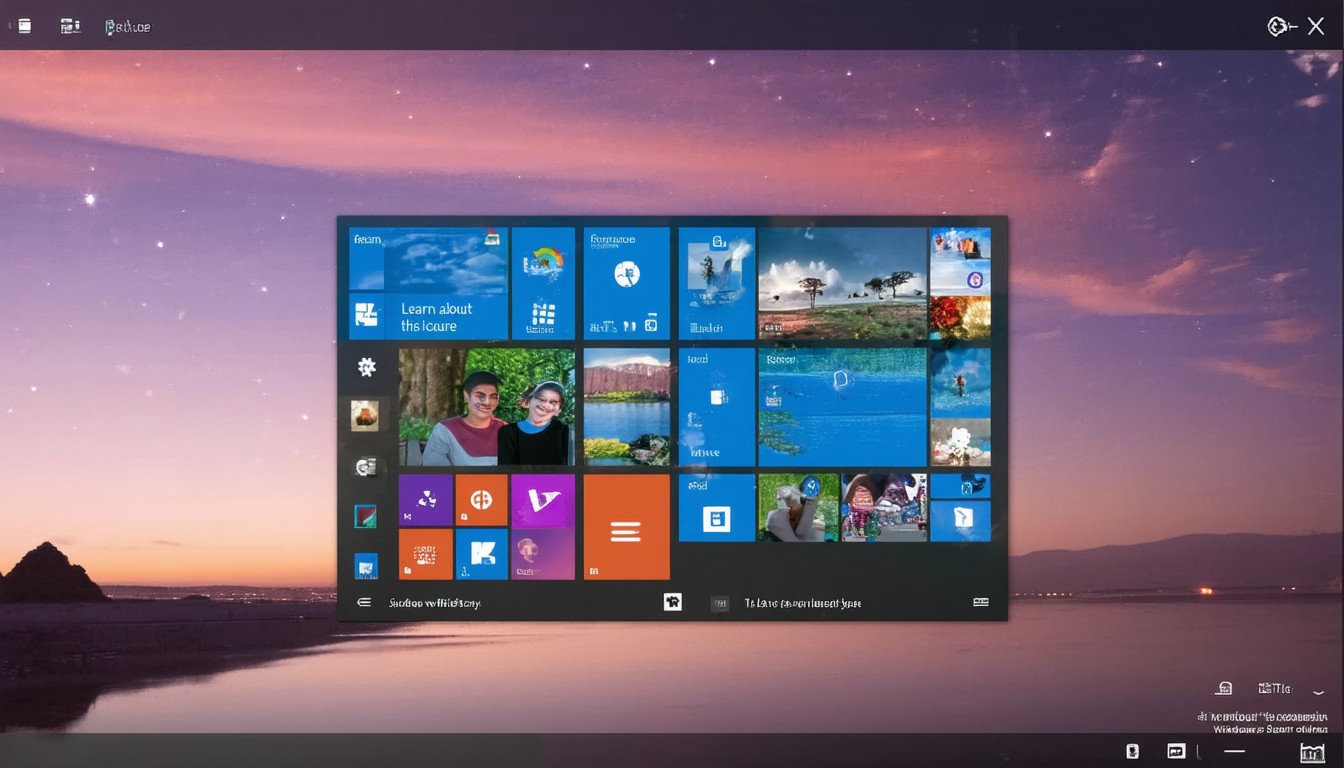
For millions of Windows users, the lock screen is not just an entry point—it’s a rotating canvas for eye-catching photography and short, informational blurbs. Among these, the recurring “Learn about this picture” prompt is a signature element of the Windows Spotlight feature. While some appreciate the variety and trivia, countless users find the pop-ups distracting or unnecessary, particularly on work devices where focus is prioritized.
The presence of these prompts is not accidental; Microsoft leverages Windows Spotlight to both enhance visual engagement and deliver subtle educational content. However, as digital workspaces become more streamlined, users are seeking ways to personalize or declutter their operating systems. The question of how to get rid of “Learn about this picture” is thus both practical and emblematic of a broader trend: user-driven customization over default system experiences.
What Is Windows Spotlight and Why Does It Show “Learn About This Picture”?
Windows Spotlight debuted with Windows 10, offering dynamic imagery and facts sourced from Microsoft’s servers. Each day (or each login), the background image changes, accompanied by overlay prompts like “Like what you see?” or “Learn about this picture.” Clicking these often opens a Bing search about the photo’s location or subject.
These informational overlays are designed with educational intent and user interaction in mind. Spotlight images come from global photographers and institutions, offering snippets of history, geography, and culture. For average users, this can be a delightful discovery mechanism. For others, especially in a professional context, such prompts verge on digital clutter.
“Personalization and simplicity in digital workspaces have become a core expectation. Many users now prefer lock screens that align with their workflow needs, removing overlays that can disrupt focus,” says Rachel Carter, a technology usability consultant.
Steps to Remove “Learn About This Picture” from Windows Lock Screen
Fortunately, removing the “Learn about this picture” prompt is straightforward, though the exact navigation may vary by Windows version and organizational settings. Here’s how to do it step-by-step:
1. Open Windows Settings
Use the keyboard shortcut Windows key + I to open the Settings app. Navigate to the “Personalization” section from the sidebar.
2. Change the Lock Screen Background
Within “Personalization,” select “Lock screen.” Under the “Background” dropdown menu, you’ll notice three main options:
- Windows Spotlight
- Picture
- Slideshow
If Windows Spotlight is active, both the image and its overlays—including “Learn about this picture”—will be present.
3. Select an Alternative Background
To eliminate the overlay:
- Choose “Picture” to select a single static image.
- Or, select “Slideshow” to cycle through a personal collection without Microsoft’s added layers.
After this switch, the extra prompts and fact blurbs disappear, leaving only your chosen image or images.
4. Optional: Additional Customization
For further control, review these additional steps:
- Turn off fun facts, tips, and more from Windows and Cortana by scrolling down in the Lock Screen settings and disabling “Get fun facts, tips, tricks, and more on your lock screen.”
- For enterprise-managed devices, some features may be enforced by IT policy, requiring admin rights or support intervention.
Troubleshooting: When Prompts Persist
If “Learn about this picture” continues to appear after changing the background:
- Double-check that “Windows Spotlight” is fully disabled.
- Restart your device to apply changes.
- Review group policy or registry settings if using a business or shared computer.
In rare situations, system updates can reset these preferences—so it can be helpful to revisit these settings after major Windows upgrades.
The Real-World Impact: Productivity, Privacy, and Preferences
While the lock screen may seem trivial, the cumulative effect of persistent prompts is notable. Distracting overlays can be especially unwelcome in business and educational settings, where compliance or branding considerations make the default images—and any outside content—unwelcome.
Studies on digital workplace efficiency consistently highlight the value users place on control over their environments. Many organizations now deploy custom lock screen images to reflect branding or reinforce information security, bypassing the Spotlight feature entirely.
In practice, the removal of “Learn about this picture” plays into larger themes of:
- Digital decluttering: More users seek minimal interfaces to improve focus.
- Privacy concerns: Some dislike Microsoft’s Bing integration and data collection through lock screen interactions.
- Branding and compliance: Organizations standardize lock screens for uniformity and messaging.
Is Disabling Windows Spotlight Always the Solution?
For users who enjoy changing photographs but dislike the overlays, there’s no official built-in way to use Spotlight images without prompts. Some third-party tools offer workarounds by downloading Spotlight images for personal use—minus the overlays—but these require manual setup.
Moreover, certain Windows updates or enterprise policies can revert lock screen settings, so users with persistent issues may benefit from contacting IT or exploring registry-based tweaks (with due caution).
“The evolution of user interfaces will likely continue to favor customization and personal control. Removing overlays like ‘Learn about this picture’ aligns with broader trends toward user empowerment and simplicity,” notes Carter.
Summary and Strategic Recommendations
Ultimately, the “Learn about this picture” prompt is a byproduct of the broader Windows Spotlight feature. By shifting your lock screen to a static picture or slideshow, you can easily regain a cleaner, distraction-free interface. This small change reflects a larger user movement toward digital minimalism and tailored workspace environments.
For organizations, establishing group policies that set or lock down lock screen options enables both branding and streamlined user experience, especially in regulated sectors. For individuals, customizing these FAQs can prevent unnecessary interruptions and help maintain an optimal workflow.
FAQs
How do I turn off “Learn about this picture” on my Windows 10 or 11 lock screen?
Switch your lock screen background from “Windows Spotlight” to either “Picture” or “Slideshow” in the Personalization settings. This removes the overlay and replaces it with your chosen image(s).
Can I keep Spotlight images without the overlays and facts?
Windows does not offer a built-in way to show Spotlight images without their informational prompts. However, you can save Spotlight pictures manually and set them as a custom slideshow without overlays.
Why does “Learn about this picture” keep reappearing after I disable it?
Major Windows updates or certain IT policies can reset lock screen settings to default. Confirm “Windows Spotlight” is disabled in Settings, and consider seeking IT support if changes persist.
Is disabling Windows Spotlight safe for my device?
Yes, disabling Spotlight or its overlays does not affect system performance or security. It simply changes how your lock screen looks and removes interactive prompts.
Can organizations enforce a custom lock screen image across all devices?
Absolutely—many businesses set corporate branding or compliance images via Group Policy or device management tools, ensuring consistent lock screens for all users.
